

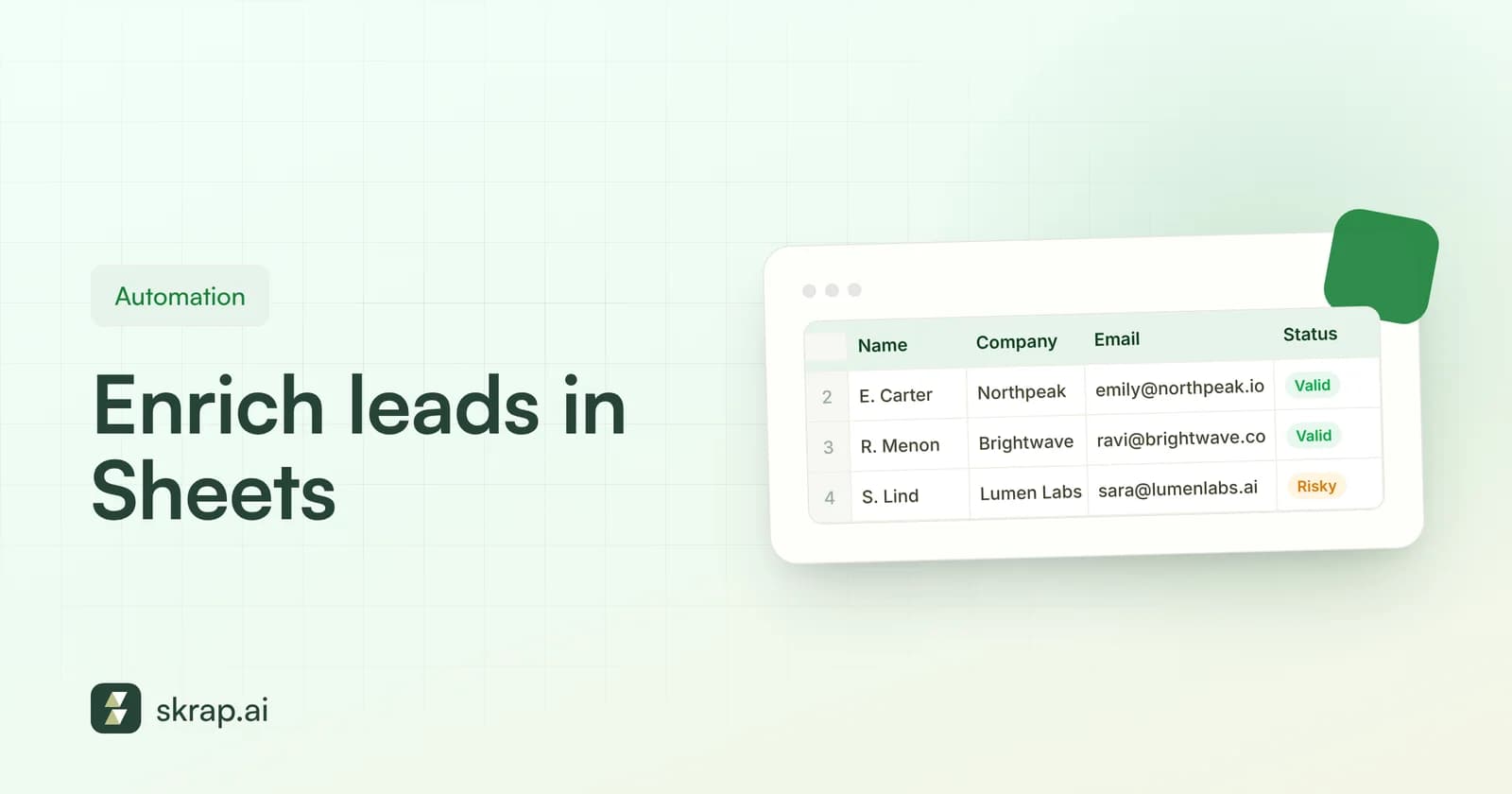
Ask any SDR, recruiter or founder where their prospect list lives, and the answer is often the same: a Google Sheet. It is where event attendee exports land, where a teammate pastes 200 target accounts, and where a manager leaves comments before a campaign goes out.
The problem is that most email tools want the list somewhere else. You export a CSV, upload it, wait, download the results, and paste them back, hoping the rows still line up. Every round trip is a chance to lose a column, duplicate a contact or overwrite a teammate's edits.
This guide shows a cleaner way: prepare your sheet, find and verify emails directly in it with the Skrap.ai Google Sheets add-on, and use native Sheets functions to keep the data tidy before and after enrichment.
Why spreadsheets are where lead lists live
Spreadsheets win for list building because they are flexible, collaborative and familiar. Nobody needs training to sort a column or leave a comment. A few more reasons they stick around:
- Everyone has access. Sales, marketing, recruiting and leadership can all open the same file without buying another seat.
- Lists arrive as spreadsheets. Event exports, webinar registrations, partner lists and CRM exports usually come as CSV or XLS.
- Review happens in context. A manager can scan job titles, flag bad fits and approve a segment right in the sheet.
- It is the staging area for your CRM. Most teams clean and enrich in a sheet, then import a final CSV into their CRM or sequencing tool.
If the list lives in Sheets, the enrichment should happen there too. That is the idea behind the add-on approach.
Before you start: set up your sheet for enrichment
Good inputs produce good outputs. Five minutes of structure saves you from bad matches and wasted lookups later.
Use one row per person and clear columns
| Column | Example | Why it matters |
|---|---|---|
| First name | Dana | Email finders match name patterns; split names work better than a single full-name field. |
| Last name | Ortiz | Needed to build and test likely address formats. |
| Company domain | example.com | A domain is more precise than a company name, which can match several businesses. |
| Company name | Example Inc. | Useful fallback and for human review. |
| (blank or existing) | Holds found emails, or existing ones you want to verify. | |
| Status | (left blank) | Reserved for verification results: Valid, Risky, Invalid or Unknown. |
Clean the inputs first
Stray spaces, mixed case and duplicate rows are the most common reasons a lookup misses. Google Sheets has built-in tools for this under Data > Data cleanup, including Remove duplicates and Trim whitespace, and Data > Split text to columns can break a full name into first and last name. We cover formula-based cleanup in more detail below.
Step-by-step: find and verify emails with the Skrap.ai add-on
The Skrap.ai Google Sheets add-on is available on Professional and Enterprise plans. The exact screens may change as the add-on evolves, so treat the steps below as the workflow rather than a click-by-click script.
- 1Install the add-on. In Google Sheets, Google's own help explains that you can open Extensions > Add-ons > Get add-ons to browse apps that work with Sheets, then install and review the permissions on the consent screen. If your company uses Google Workspace, your admin may need to approve the app first. Visit our Google Sheets page for the current listing.
- 2Connect your Skrap.ai account. Sign in so lookups draw from your plan's shared credit pool, the same one used by the web app and API.
- 3Open the add-on from the Extensions menu. Google notes that installed add-ons appear under Extensions > Add-ons in your spreadsheet.
- 4Select your input columns. For finding, map the first name, last name and domain (or company) columns. For verifying, point to the column that holds the email addresses.
- 5Choose where results go. Pick the empty Email and Status columns you reserved, so the add-on never overwrites existing data.
- 6Run find or verify. Start with a small test range, such as 20 rows, check the output, then run the full list.
- 7Review statuses. Sort or filter by status and decide what to do with each group before anything is exported or sent.
Find first, then verify
If your sheet has names and domains but no emails, run find first. Then run verification on the emails that came back, plus any addresses that were already in the sheet from older exports. Existing addresses are the ones most likely to have gone stale, because people change jobs and companies retire domains.
Splitting the job this way also makes results easier to audit. You can see which rows had no email found at all, which found emails verified cleanly, and which older addresses failed. Each group needs a different next step, from manual research to removal.
How to read your verification results
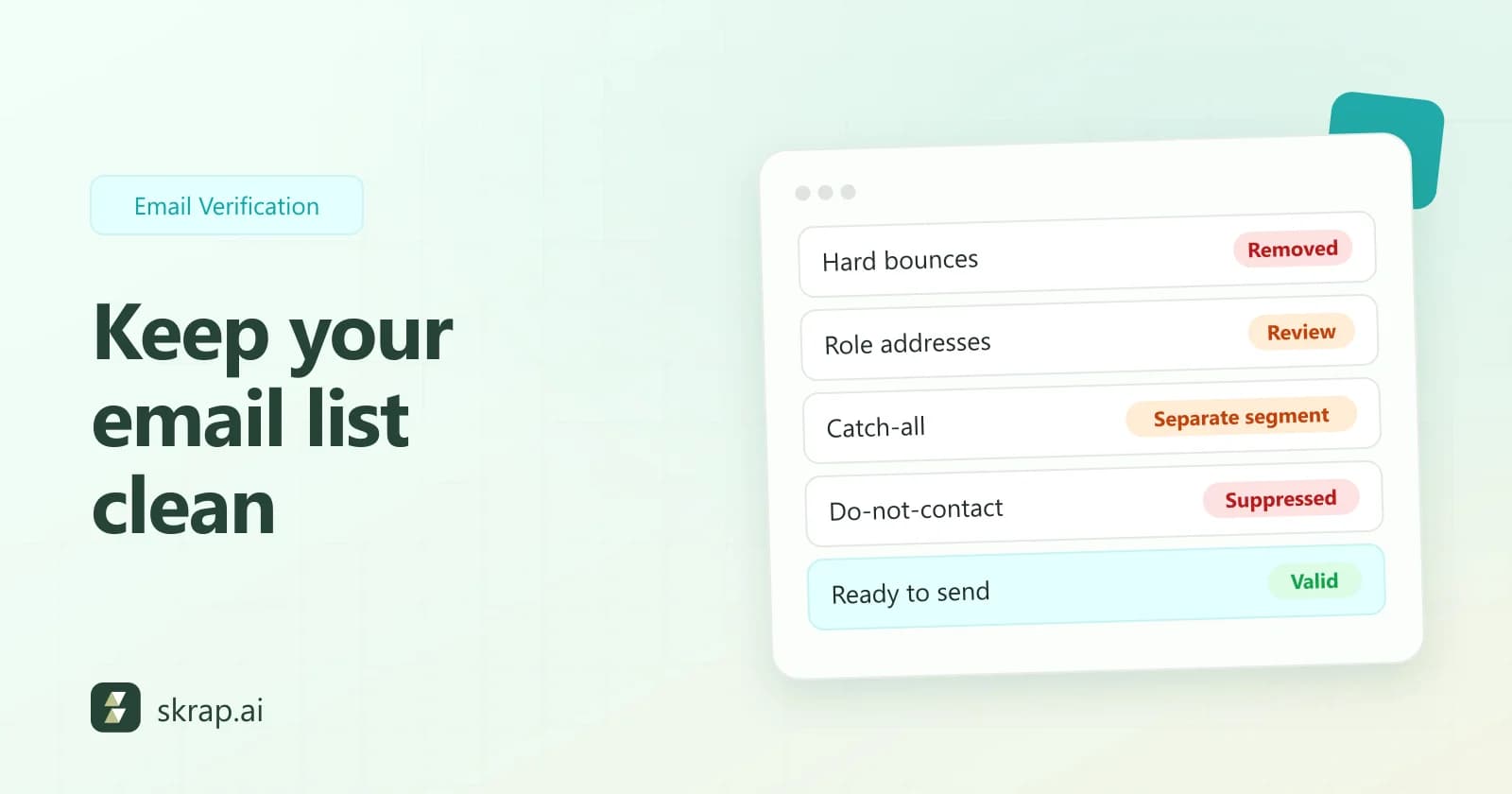
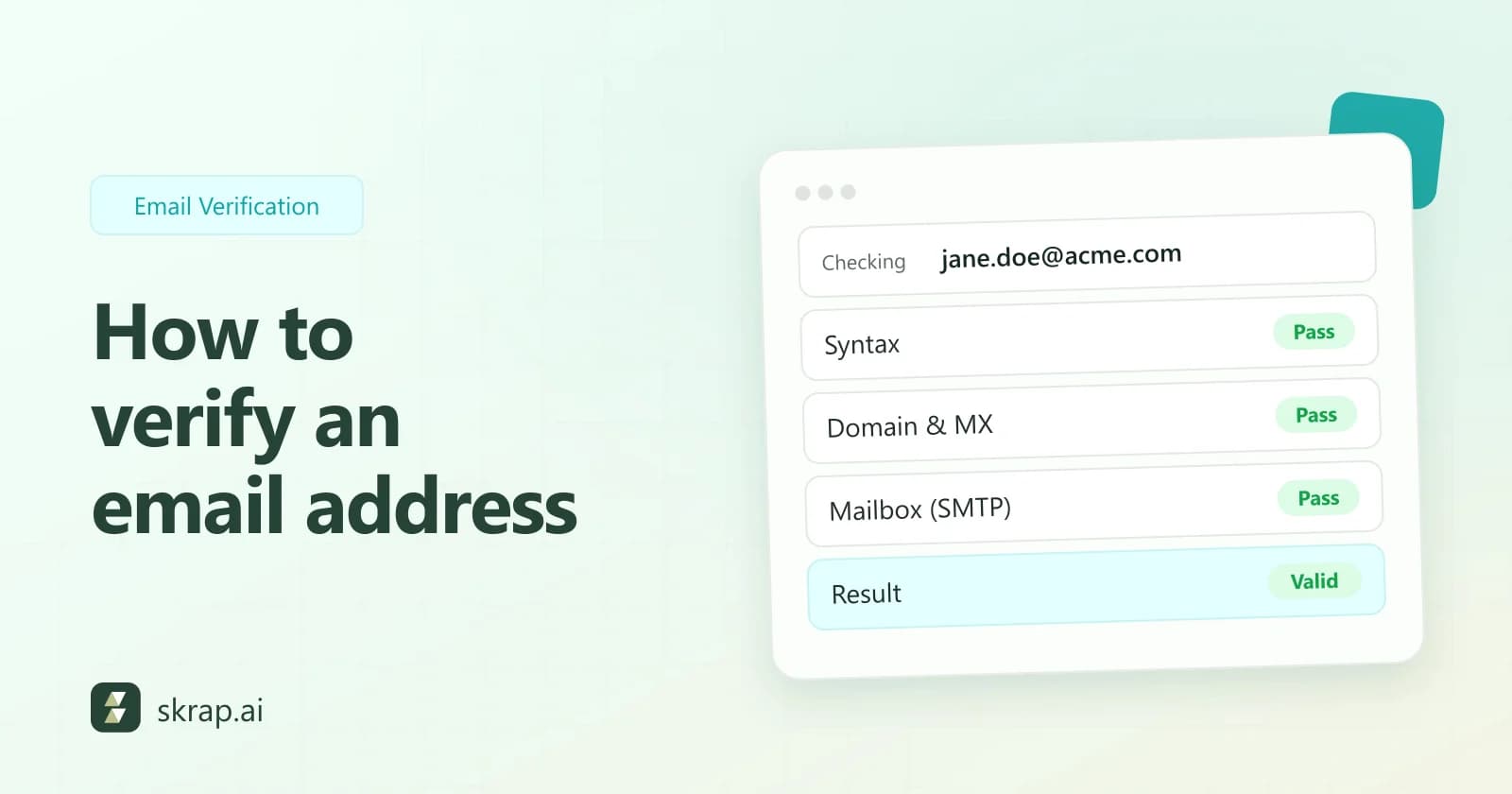
Skrap.ai checks syntax, the domain and its mail (MX) records, and the mailbox over SMTP. Each address comes back with one of four statuses. Here is what to do with each, and what it costs:
| Status | What it means | What to do | Credits |
|---|---|---|---|
| Valid | The address passed syntax, domain and mailbox checks. | Safe to keep in your send list. | 1 |
| Risky | Checks completed but the result is not certain, for example on domains that accept all mail. | Send in smaller batches or a separate segment, and watch bounces. | 1 |
| Invalid | The address failed one or more checks. | Remove it from outreach. | 0 |
| Unknown | The mail server did not give a usable answer. | Hold it and re-check later, or leave it out. | 0 |
For finding, the rule is just as simple: a found email costs 1 credit, and a contact with no email found costs nothing. That makes it painless to run a messy list: you only pay for rows that come back useful. For a deeper look at uncertain results, read catch-all emails explained.
Native Sheets formulas for cleanup
You do not need scripts to clean a lead list. These built-in functions, all documented in Google's Docs Editors Help, cover most jobs. Assume emails are in column C and statuses in column F.
| Task | Formula | Notes from Google's docs |
|---|---|---|
| Remove extra spaces | =TRIM(A2) | Removes leading, trailing and repeated spaces between words. |
| Standardize case | =LOWER(C2) | Converts text to lowercase, which helps when comparing addresses. |
| Extract the domain | =REGEXEXTRACT(C2,"@(.+)$") | Returns the part matched by the capture group; Sheets uses RE2 regular expressions. |
| Flag a work vs personal domain | =REGEXMATCH(C2,"@(gmail|yahoo|outlook)\.com$") | Returns TRUE or FALSE; works on text only. |
| Flag duplicates | =COUNTIF(C:C,C2)>1 | COUNTIF is not case-sensitive, so mixed-case duplicates are still caught. |
| List distinct emails | =UNIQUE(C2:C) | Keeps the first occurrence in order; hidden trailing spaces can stop rows matching. |
| Pre-check format | =ISEMAIL(C2) | Checks the format only; it does not confirm the address exists. |
| Pull only Valid rows | =FILTER(A2:F,F2:F="Valid") | Returns #N/A if nothing matches. |
A practical cleanup order
- 1Run Data > Data cleanup > Trim whitespace (or TRIM) on names, domains and emails.
- 2Lowercase emails and domains with LOWER so comparisons are consistent.
- 3Flag duplicates with COUNTIF, review them, then use Remove duplicates or UNIQUE.
- 4Use ISEMAIL to catch obvious typos like missing @ signs before you spend time on verification.
- 5Verify the remaining list with the add-on, then FILTER to the statuses you want to export.
One more gotcha: Google notes that TRIM may not remove every kind of whitespace, such as non-breaking spaces that come along when you copy from a web page. If two values look identical but will not match, that is often why.
Data hygiene habits that keep lists usable
Enrichment is not a one-time job. Contacts change roles, companies change domains and lists pick up duplicates every time someone pastes in new rows. A few habits keep your sheet reliable:
- Date-stamp your results. Add a 'Verified on' column so you know which rows are stale. Re-verify older rows before a new campaign.
- Keep raw and clean tabs separate. Paste new leads into a raw tab, clean and enrich them, then move them into the master list.
- Lock the header and results columns. Use protected ranges so teammates do not overwrite statuses by accident.
- Track the source of every row. A 'Source' column helps you see which lists produce the most Valid results and which ones to stop buying from.
- Do not buy lists. Yahoo's guidance tells senders not to buy mailing lists and to send only to people who requested mail; for cold outreach, stick to relevant, researched contacts and honor opt-outs quickly.
- Remove, do not hide. Filtering out Invalid rows is fine for a view, but delete them from the export so they never reach your sending tool.
If your list starts from scratch rather than from an export, see our guide to building a B2B prospect list and how to find a business email by name and company.
From sheet to campaign: what happens next
Once your list is clean and verified, export only the rows you plan to contact. Most teams download a CSV from Sheets and import it into their CRM or sequencing tool. Keep the status column in the export so your CRM has a record of when and how each address was checked.
If you find yourself running the same enrichment every week, it may be time to automate it. The Skrap.ai REST API lets you run verify and find from your own scripts or workflows, and our guide to using an email API in your CRM workflow walks through the patterns.
And when you are ready to send, our email deliverability guide covers authentication, sending volume and the bounce thresholds that matter.







 No credit card required
 100 one-time free credits